
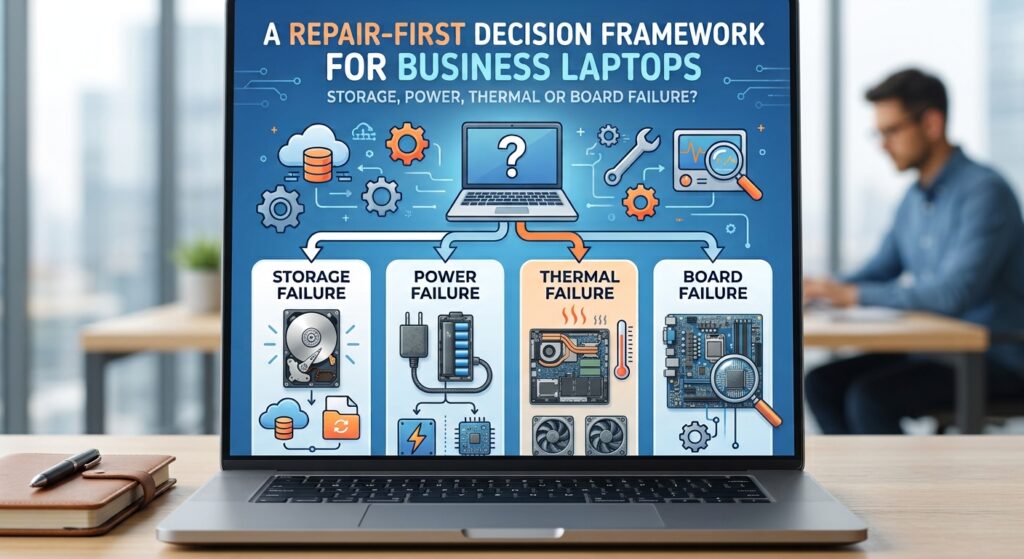
When a business laptop fails, the first question is often, “Should we repair it or replace it?” That question is important, but it usually comes too early. A better first step is to identify what has actually failed, protect the data, and separate software problems from hardware faults before making a financial decision.
For a small business, the cost of a laptop problem is rarely limited to the repair bill. Downtime, inaccessible files, delayed customer work, lost productivity and rushed replacement purchases can cost more than the hardware itself. A structured diagnosis helps reduce that uncertainty.
1. Protect the Data Before Experimenting
Before resets, operating-system reinstalls, firmware changes or repeated recovery attempts, identify whether the laptop contains business-critical files that exist nowhere else. If the machine still starts and the storage device appears stable, copy important files to a verified external or cloud location before making major changes.
Microsoft’s Windows recovery guidance similarly recommends backing up important files before using recovery options that may affect data. The principle is simple: troubleshooting should not create a second problem while trying to solve the first.
If the drive is clicking, repeatedly disappearing, producing read errors, or causing the system to freeze during file access, avoid unnecessary write-heavy activity. Continuing to install software, run repeated repairs or copy large amounts of new data can complicate recovery on a failing storage device. Where business data is irreplaceable, data preservation should take priority over getting the laptop to boot quickly.
2. Storage Failure and Windows Corruption Can Look Similar
A laptop that is slow, stuck during startup or repeatedly crashing may have an SSD problem, but it may also have a damaged operating system, failed update, driver conflict or file-system issue. Replacing the drive without testing can waste money, while repeatedly reinstalling Windows on a failing drive can waste time and risk data.
Start by looking for a pattern. Storage faults are more likely when the drive intermittently disappears from firmware or the operating system, read/write operations produce errors, file transfers fail, the laptop freezes specifically during disk activity, or manufacturer diagnostics report a problem. Software corruption is more likely when the storage device remains consistently detected and healthy but Windows began failing after an update, driver change, malware event or damaged system files.
The distinction matters because the repair paths are different. A healthy SSD with a damaged Windows installation may need software recovery or reinstallation. A failing SSD usually needs replacement, followed by restoration from a backup or careful data migration if the old drive remains readable.
For business users, the practical question is not simply “Does it boot?” but “Can we trust the storage after the repair?” A system that starts today but continues showing intermittent storage errors is not a stable business workstation.
3. Battery and Charging Faults Are Not the Same as Motherboard Failure
A laptop that will not charge or power on does not automatically have a dead motherboard. Power problems can begin at several points: the charger, cable, charging port, battery, internal power path, firmware, charging controller or mainboard.
Basic diagnosis should therefore move from the simplest external causes toward the more complex internal ones. Confirm that the correct charger is being used, inspect the cable and connector, test another known-good compatible adapter where appropriate, and check whether the laptop behaves differently with the battery connected or disconnected if the design allows safe testing.
Symptoms also provide clues. A laptop that runs normally on AC power but shuts off when unplugged may have a battery problem. A machine that recognizes the charger but never increases battery percentage may have a battery, charging-circuit or firmware issue. A laptop with no charging indicator, no power response and no known-good adapter result may require board-level power diagnostics.
This is why replacing the motherboard as a first step is rarely a good diagnostic strategy. Board replacement can be expensive, and the actual failure may be a smaller component in the charging or power-delivery path.
4. Thermal Problems Can Imitate Performance Failure
Overheating can make an otherwise functional laptop feel defective. Dust-restricted airflow, a failing fan, dried or poorly applied thermal interface material, blocked vents or sustained heavy workloads can cause high temperatures, reduced performance, sudden shutdowns or fan noise.
The important distinction is between a laptop that is slow because its processor or graphics hardware is protecting itself from excessive temperature and one that is slow because of storage, memory, software or other faults. A proper diagnosis should therefore include temperature monitoring, fan operation, airflow inspection and a workload test rather than relying only on how “hot” the laptop feels externally.
Thermal servicing is most valuable when there is evidence of a cooling problem. Cleaning a machine that already has normal temperatures will not repair a failing SSD or damaged power circuit. Likewise, reinstalling Windows will not fix a fan that is no longer moving enough air.
For business devices, heat management is also a reliability issue. A laptop that repeatedly shuts down under load is not suitable for production work until the cause is identified and tested under realistic workload conditions.
5. When Board-Level Repair Makes Sense
Motherboard faults are often treated as an automatic replacement decision, but that can be too simplistic. Some no-power, charging, liquid-damage and component-level faults can be isolated to a specific section of the board. In those cases, a board-level repair may restore the original device without replacing the entire motherboard.
The decision depends on fault scope, parts availability, repairability of the board, risk to data, expected reliability after repair and the value of the device. A recent business laptop with a localized power fault may be a strong repair candidate. An older machine with several failing subsystems, physical damage and limited parts support may not be.
The key is diagnosis before quotation. A repair recommendation is more useful when it explains what failed, what will be repaired or replaced, what remains uncertain, and what testing will be performed after the work.
6. Use a Repair-Versus-Replace Framework Instead of One Rule
There is no universal age at which every laptop should be replaced. A better decision uses several factors together:
Fault scope: A single failed component is different from multiple unrelated failures.
Repair cost: Compare the complete repair cost with the realistic cost of a suitable replacement, not only with the original purchase price.
Device capability: If the repaired laptop still meets the company’s software, security and performance requirements, repair may extend its useful life. If it is already inadequate for the workload, replacement may solve two problems at once.
Data and setup cost: Replacing a laptop also involves application installation, data migration, account setup, security configuration and staff downtime. Those costs should be included in the comparison.
Parts and support: Availability of batteries, screens, keyboards, boards and manufacturer support can affect long-term maintainability.
Reliability after repair: A low-cost fix is not automatically good value if other major components are already failing.
A useful decision question is: “After this repair, is the device likely to provide dependable service for a reasonable period at a lower total cost than replacement?” That is more practical than using age alone.
7. Ask for Evidence After the Repair
A repaired laptop should be tested for the original fault and for the conditions that trigger it. Depending on the repair, that may include charging tests, battery behavior, storage diagnostics, memory testing, thermal load testing, port checks, sleep/wake behavior, network connectivity and repeated cold starts.
For businesses, documentation helps. Recording the fault, work performed and parts replaced makes future decisions easier and helps identify recurring problems across a fleet of similar devices.
8. The Practical Sequence
When a work laptop fails, a sensible order is:
- Protect or identify the status of important data.
- Record the exact symptoms and when they occur.
- Separate software, storage, power, thermal and board-level possibilities.
- Test before replacing expensive components.
- Compare repair cost, downtime and expected remaining service life with replacement.
- Verify the repair under realistic operating conditions before returning the device to normal business use.
Repair and replacement are both valid outcomes. The mistake is making either decision before the fault is understood.
For small businesses, the most valuable result of diagnosis is not simply a working laptop. It is enough reliable information to choose the lowest-risk path back to productive work.
Technical Background References
- Microsoft Support — Recovery options in Windows: https://support.microsoft.com/en-us/windows/experience/backup-recovery/recovery-options-in-windows
- Microsoft Support — Choose a backup solution in Windows: https://support.microsoft.com/en-us/windows/experience/backup-recovery/choose-a-backup-solution-in-windows
About Author
WEFIX-IT COMPUTER REPAIRING & MAINTENANCE CO. provides computer and laptop diagnostics, repair and business IT support in Dubai.
More information: https://www.wefixitcomputers.ae/
Lets highlight your brand?
Promote your article on Publcity to showcase your business, expertise, services or ideas.
Explore Sponsored Publishing Options → Promote your existing article choose our Write-for-you option.Submit Free Guest Posts
Have an original story, useful insight or professional perspective to share? Publcity welcomes contributions across Business, Marketing, Technology, Travel and Culture.
Review the submission guidelines before sending your article.