
Open Canva for the first time and you are met with hundreds of thousands of templates, a sidebar full of tools, and no clear idea where to click first. So most new creators do one of two things: they close the tab, or they spend two hours decorating a post that should have taken ten minutes.
Neither problem is about talent. You do not need a design degree to make clean, good-looking graphics in Canva. You need one simple workflow you can repeat. This tutorial gives you exactly that: the right setup, a quick tour of the editor, your first design step by step, the five mistakes almost every beginner makes, and a five-minute checklist to run before you download anything.
Step One: Start With the Right Size
Every Canva design starts with a choice of size, and getting it right first saves you from the blurry, badly cropped posts beginners always complain about later.
The easiest route: on the Canva home screen, search for what you are making. Type “Instagram post”, “YouTube thumbnail” or “presentation” and pick the result. Canva sets the correct dimensions for you, so you never have to memorize numbers.
A few sizes are still worth knowing:
- Instagram post: 1080 x 1080 px
- Instagram story or reel cover: 1080 x 1920 px
- YouTube thumbnail: 1280 x 720 px
- Presentation: 1920 x 1080 px
- A4 document: 210 x 297 mm
Need something else? Click Create a design, then Custom size, and type your own width and height. One rule matters more than any other here: design at the size you will actually publish. A graphic built small and stretched later will always look soft and blurry, and no filter fixes that.
The Canva Editor in Two Minutes
Once your blank design opens, ignore most of what you see. You will spend almost all your time in four places:
- Templates (left sidebar): ready-made layouts you can edit instead of starting from zero.
- Elements: shapes, lines, icons, stickers and photos you add to a design.
- Text: headings, subheadings and body text boxes.
- Uploads: your own photos, logos and videos.
Click anything on the canvas once and it gets selected. Drag the corner handles to resize it, and use the small toolbar that appears above it to change colors, fonts or effects. That is genuinely most of the editor. Everything else you can learn later, one feature at a time, when you actually need it.
Your First Design in 7 Steps
Enough theory. Let’s make a simple Instagram post, the way you will make almost everything in your first month.
- Create the design. From the home screen, choose Instagram Post. You now have a correctly sized blank canvas.
- Pick a template, not a blank page. Search the Templates panel for something close to your topic, like “minimal quote” or “sale announcement”. A template gives you layout, spacing and font choices that already work together.
- Replace the words. Click each text box and type your own message. Keep the template’s fonts for now. One short message per design, nothing more.
- Swap the photo. If the template has an image, drag a new photo from Uploads or the Photos tab straight onto it. It drops into the same frame, already cropped.
- Fix the colors. Click any colored element, then the color tile in the top toolbar. Look for the photo colors Canva suggests: they are pulled from your image, so picking from them makes text and shapes match your photo without any color theory.
- Tidy the alignment. Drag elements until the pink guide lines appear and the element snaps into place. Still looks messy? Select everything, open Position in the top toolbar, and hit Tidy up.
- Download it. Click Share, then Download. Choose PNG for social media posts, JPG when you need a smaller file, and PDF Print for anything you will print.
That’s it. Your first design is done, and the same seven steps cover most posts, thumbnails and simple flyers you will ever make.
5 Beginner Mistakes (and the 10-Second Fixes)
1. Using Four or Five Different Fonts
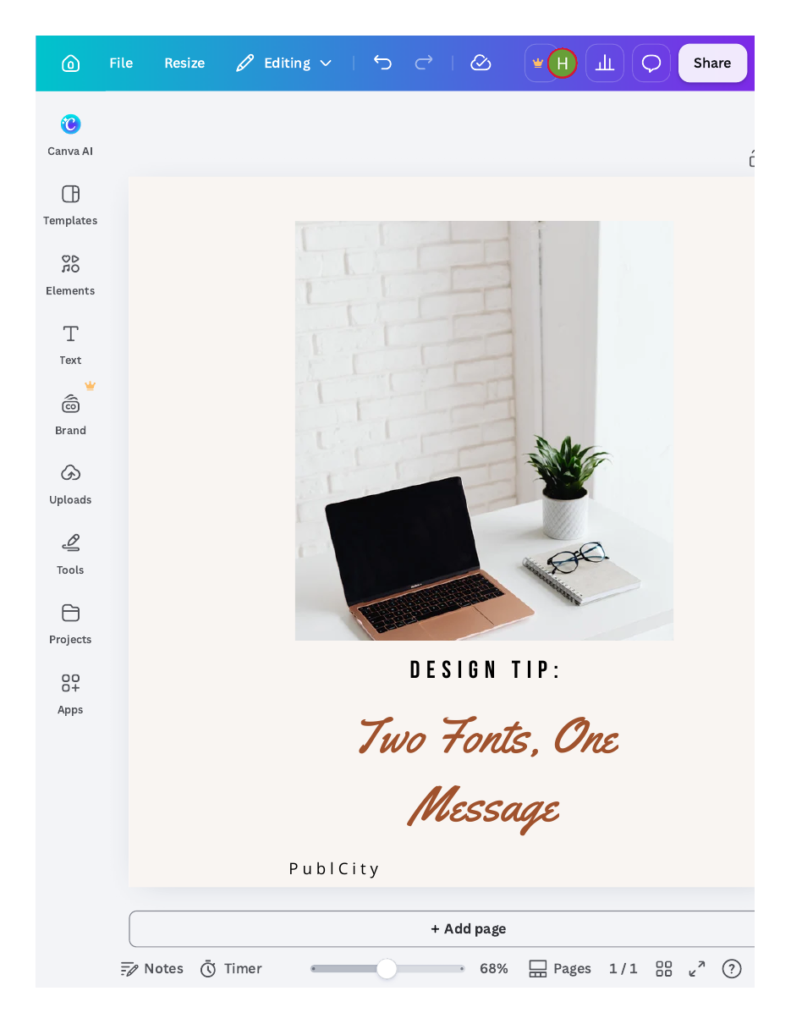
It is the fastest way to make a design look amateur. Fix: two fonts maximum, one for headings and one for body text. And do not pick them by scrolling the font list at random. Start from a set that already looks good together, like the best cute fonts on Canva, and copy those combinations until you develop an eye for your own.
2. Text That Is Too Small to Read on a Phone
It looked fine on your laptop screen, which is exactly the trap. Fix: zoom the canvas out to 50 percent. If you have to squint, your audience will too. Make it bigger.
3. Text Lost on Top of a Busy Photo
White letters over a bright photo simply disappear. Fix: put a plain rectangle behind the text, set its transparency to about 50 percent, and your words become readable instantly.
4. Stretching Photos Out of Shape
Dragging the side handles of a photo squashes faces and logos. Fix: only ever drag the corner handles, and double-click the photo when you want to crop it instead.
5. Designing Small, Then Uploading Blurry
This is the size mistake from step one coming back. Fix: never upscale. If a post needs a new size, create a fresh design at the correct dimensions and rebuild it there. It takes two minutes and looks ten times better.
The 5-Minute Checklist to Use Every Time
Before you download any design, run these five questions in order:
- Is this the right size for where it will be posted?
- Does it say one thing, clearly, that a stranger gets in three seconds?
- Am I using two fonts or fewer, and is the text readable at phone size?
- Are the colors consistent, three main colors or fewer?
- Is everything aligned, and am I exporting the right file type?
Five questions, five minutes. This little routine is the real difference between beginner graphics and the clean posts you see from experienced creators. It was never secret software or secret talent. It is a checklist, run every single time.
Your first design will not be your best one, and that is fine. Post it anyway. The creators who grow are the ones who finish their tenth design this month, not the ones still polishing their first. Open Canva, pick one template, and finish one design today.
About the Author
Henry Tyson writes practical Canva tutorials for beginners at The Vistly, covering fonts, templates and everyday design tasks in plain, step-by-step language.
Lets highlight your brand?
Promote your article on Publcity to showcase your business, expertise, services or ideas.
Explore Sponsored Publishing Options → Promote your existing article choose our Write-for-you option.Submit Free Guest Posts
Have an original story, useful insight or professional perspective to share? Publcity welcomes contributions across Business, Marketing, Technology, Travel and Culture.
Review the submission guidelines before sending your article.